
Phishing Team
Part 3 of 4
While I was drafting the previous Phishing post, this one came in. This time, they tried to make it look like there was an Urgent message in Teams for me. If you are not familiar with Teams, it is a Microsoft Office collaboration application. You can chat, share files, use it for video teleconferencing and phone calls, and more. We currently don’t use Teams at Simply Web Services. I didn’t fall for this spear phishing attempt.
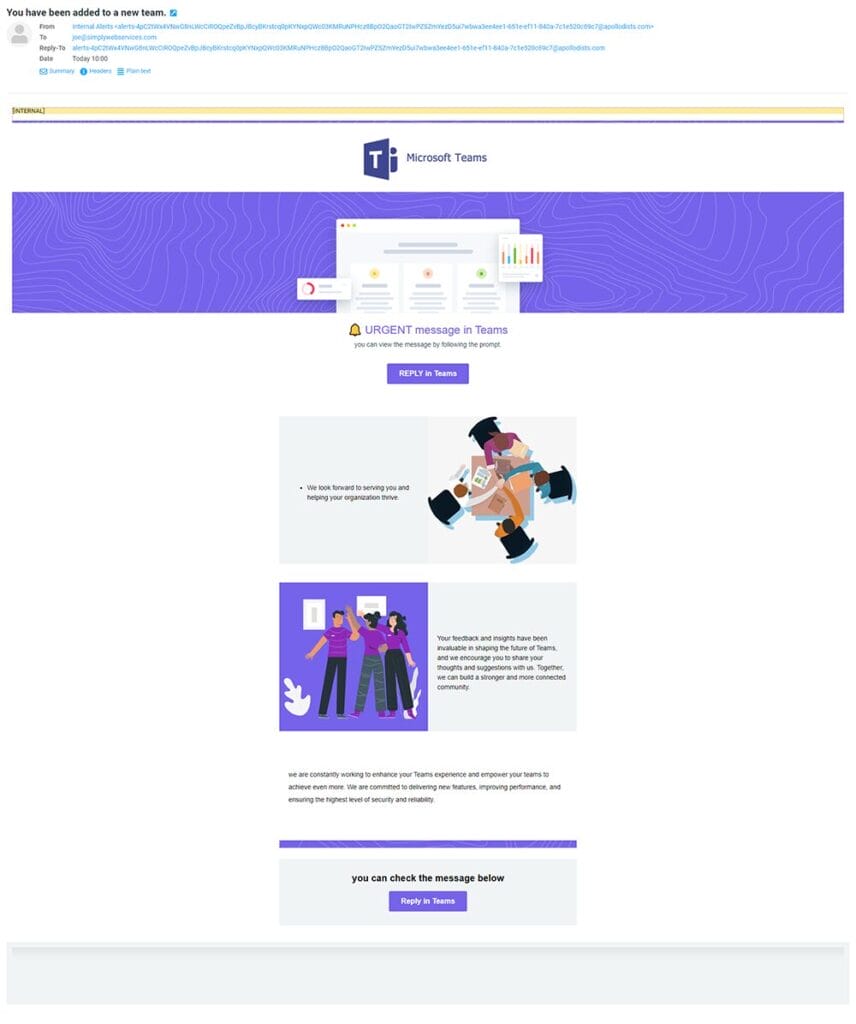
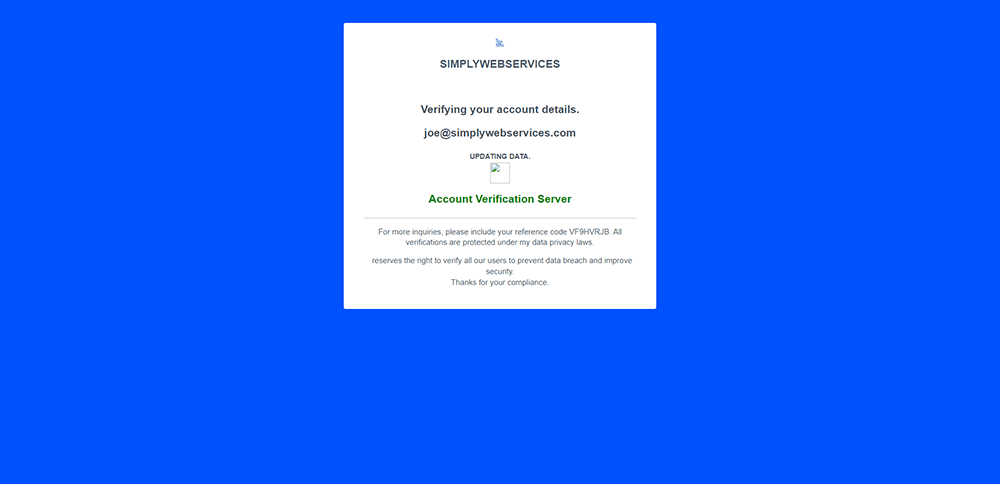
Clicking the Reply in Teams button redirects to a long URL that is 1,253 characters long. I thought it might try to launch my local install of Teams, but instead it redirected to a URL only 333 characters long, which opened the webpage below.
What to Watch For
Microsoft Teams phishing emails are among the more convincing scams circulating right now because they exploit a tool that millions of people use every day at work. Here are the red flags to look for:
- Check the sender’s email address — legitimate Microsoft Teams notifications come from a microsoft.com domain, not a random cloud storage or third-party URL
- Hover before you click — always hover your mouse over any button or link to preview the actual destination URL before clicking anything
- Beware of urgency — phrases like “Urgent Message,” “Action Required,” or “Reply Now” are pressure tactics designed to get you to act before you think
- Unusually long URLs are a red flag — the redirect in this example was 1,253 characters long; legitimate Microsoft links are never that long
- When in doubt, open Teams directly from your desktop app — never through an email link
Lessons Learned
- Simply Web Services does not use Microsoft Teams to communicate with clients — any Teams notification claiming to be from us is a phishing attempt
- Legitimate Microsoft Teams email alerts come from microsoft.com domains only
- A redirect through multiple URLs or a suspiciously long link is a strong indicator of a phishing attack
- Animated “verifying” pages are a common phishing trick to create the illusion that a legitimate process is occurring — do not be fooled by polished graphics or motion effects
- Let’s Go Phishing – Part 1
- Weekend Phishing Trip – Part 2
- Phishing Team – Part 3
- Email Phishing – Part 4
FAQs
A Microsoft Teams phishing email is a fraudulent message designed to look like an official notification from Microsoft Teams — typically claiming you have an urgent or unread message waiting. The email contains a button or link that, when clicked, redirects you to a malicious website designed to steal your login credentials. These emails can be very convincing because they mimic the actual look and feel of legitimate Teams notifications.
Regular phishing casts a wide net — the same generic email is sent to thousands of people hoping someone falls for it. Spear phishing is more targeted and personalized. Attackers research their target and craft a message that appears specifically relevant to them — such as a Teams notification sent to someone who works in an office that uses Microsoft 365. The more convincing and tailored the email, the more dangerous the attack.
Check the sender's email address carefully — legitimate Microsoft Teams notifications come from microsoft.com domains, not random cloud storage or third-party URLs. Hover over any buttons or links before clicking to see where they actually lead. If the URL is extremely long, contains unusual domain names, or redirects through multiple addresses, treat it as a phishing attempt. When in doubt, open Microsoft Teams directly from your computer rather than clicking any email link.
Clicking a phishing link typically redirects you through one or more URLs — sometimes hundreds or thousands of characters long — before landing on a fake login page designed to look legitimate. If you enter your credentials on that page, they are captured by the attacker instantly. You may then be redirected to a real website (like the Simply Web Services homepage in the HR memo example) to make it appear nothing happened — when in fact your account has already been compromised.
No, not yet. Simply Web Services does not use Microsoft Teams to communicate with clients. If you receive a Teams notification or urgent message alert that appears to come from us, it is a phishing attempt. Our communications with clients are conducted via email and phone only. Never click a Teams link claiming to be from Simply Web Services — contact us directly to verify.
**NOTE** We are planning on rolling this feature out soon.
Received a suspicious Teams notification or urgent email alert? Don't click — contact us first.
Phishing emails impersonating Microsoft Teams, HR departments, and email providers are becoming harder to detect. If you’re an SWS client and something looks off, call us before taking any action.